Events & controllers
Tempo, time signature, program changes, control changes, noteOn/noteOff, and CC64 sustain events.
or
No file selected
This MIDI Inspector helps you understand how a MIDI file is structured before you export or edit anything.
Tempo, time signature, program changes, control changes, noteOn/noteOff, and CC64 sustain events.
See whether a file is single-track or multi-track, and how channels/programs are distributed.
Inspect PPQ, ticks, seconds, tempo events, and time signature changes to debug timing mismatches.
Spot overlap, dangling notes, orphan note-offs, and other issues that can break playback or analysis.
If you need to debug MIDI before exporting it to CSV or JSON, this is the fastest place to start.
Here is what a real MIDI file can look like inside the inspector. Example file: Catch A Fire.
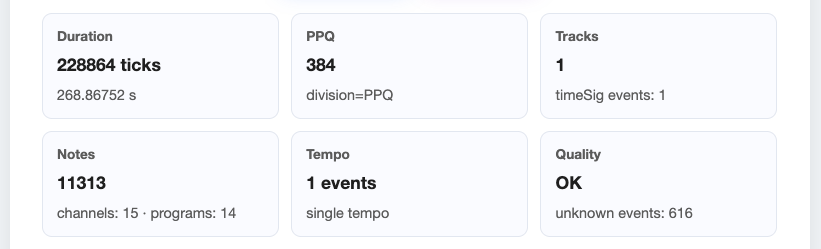
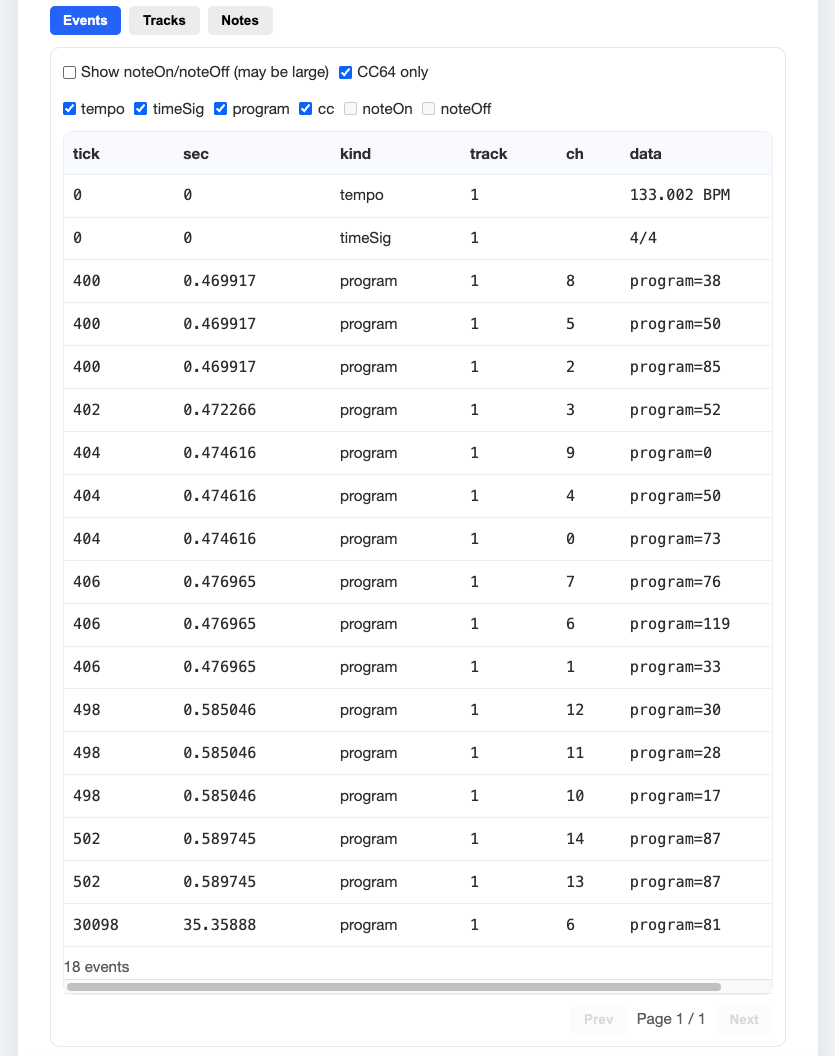
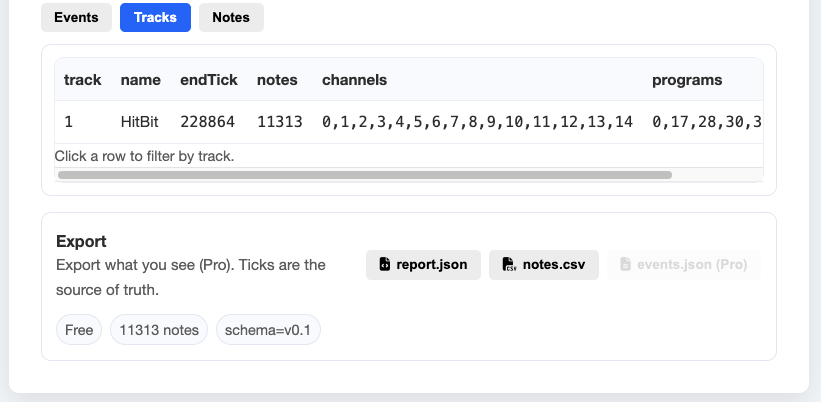
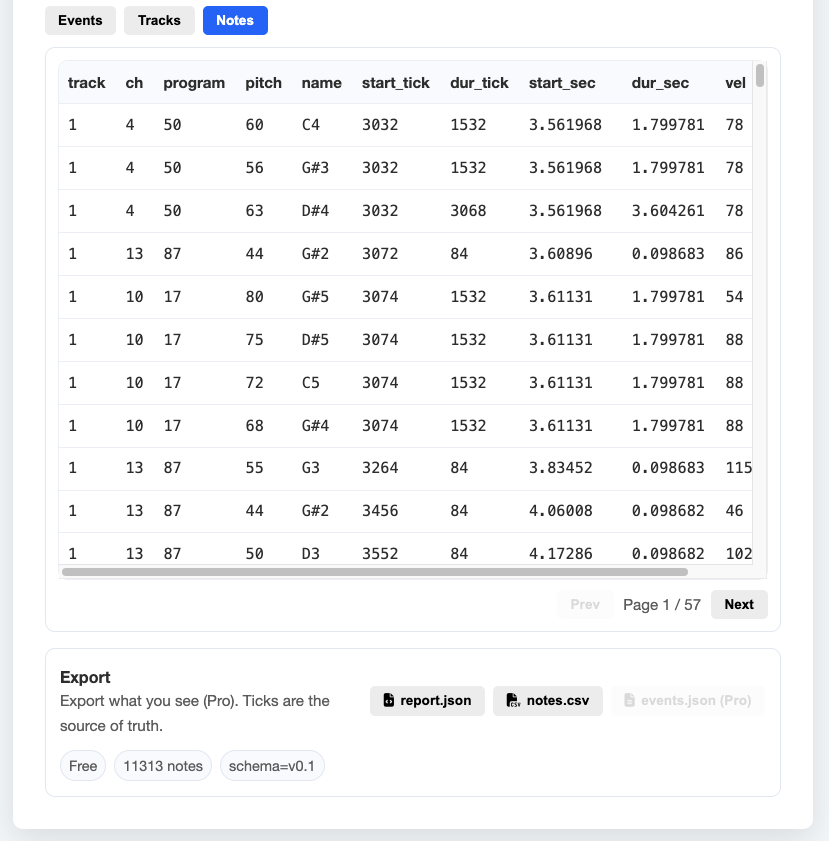
Load one file, inspect multiple views, then filter to isolate timing, structure, and note issues.
Drop a MIDI file into the inspector to see its structure instantly. Processing runs locally in your browser.
Use Events, Tracks, and Notes to inspect different layers of the file.
Filter by track, channel, pitch, controller type, or quality flags to narrow down timing, note, or controller issues.
Start with Events for tempo/program changes, use Tracks for structure, and use Notes for note-level detail.
Problem-first checks for the most common MIDI inspection questions.
Many MIDI files are single-track. In that case, track stays 1 even when multiple channels and programs exist.
Next step: Export notes to CSV
Timing mismatches often come from tempo events, time signature changes, or mixing up ticks and seconds.
Next step: Read the timing guide
A single track can still contain many channels. Use track + channel + program together to map parts and instruments.
Next step: Convert inspected MIDI to CSV
Sustain is usually stored as CC64. Use the event filters and keep CC64 rows visible when debugging playback feel.
Next step: Inspect controller events
These flags identify note integrity issues that can affect playback, visualization, or downstream export.
Next step: Upgrade for advanced note filtering
Some files include uncommon or device-specific events. Review quality summary + event list before exporting.
Next step: Inspect events
Quality flags help you find structural issues in note data before exporting or editing a MIDI file.
If you are debugging playback, note integrity, or export quality, flags are often the fastest place to look.
Pick the right tool based on whether you are debugging structure, analyzing notes, or building with structured output.
| Need | Best tool |
|---|---|
| Debug tracks, channels, tempo, events, or note issues | MIDI Inspector |
| Analyze notes in Sheets / Excel | MIDI to CSV |
| Work with structured output in code | MIDI to JSON |
Use Inspector first when something looks wrong. Use CSV for spreadsheet analysis, and use JSON for scripts, web apps, or pipelines.
Quick answers for event inspection, track/channel logic, timing checks, and quality flags.
It shows MIDI events, tracks, channels, notes, tempo changes, time signatures, and quality indicators such as overlap or dangling notes.
No. Inspection runs locally in your browser. Your MIDI files stay on your device.
Many MIDI files are single-track. In that case, channels and programs are often the best way to distinguish parts.
A track is part of the file structure. A channel is a MIDI routing layer often used for instruments or parts. One track can contain many channels.
Open the Events view and look for tempo and timeSig rows.
They are note integrity flags that help identify structural problems in note data.
Use Inspector when you need to debug structure or events. Use CSV when you want note-level analysis in spreadsheets.
Learn how to inspect, export, and debug MIDI data more effectively.