.png)
Need to analyze MIDI data in Excel, Google Sheets, or Python? Converting your MIDI files to a note-level CSV is probably the fastest way to get started. This guide walks you through the exact steps, explains what you'll find in the CSV, and answers the most common "wait, why does this look like that?" questions.
The good news: MidiEasy handles MIDI to CSV conversion right in your browser—nothing gets uploaded. Your files never leave your device.
Converter:
/midi-to-csv
Inspector (for debugging MIDI structure):/midi-inspector
Table of Contents
- Quick start for Sheets/Excel users
- What the CSV actually looks like
- Common issue #1: "Why is the track column always 1?"
- Working with Google Sheets / Excel
- Working with Python (pandas)
- Common issue #2: "Why are there so many channels?"
- Common issue #3: "The timing seems off"
- Common issue #4: "Some of my files won't convert"
- Is Pro worth it? (Lifetime $9.90)
- Related tools
Quick start for Sheets/Excel users
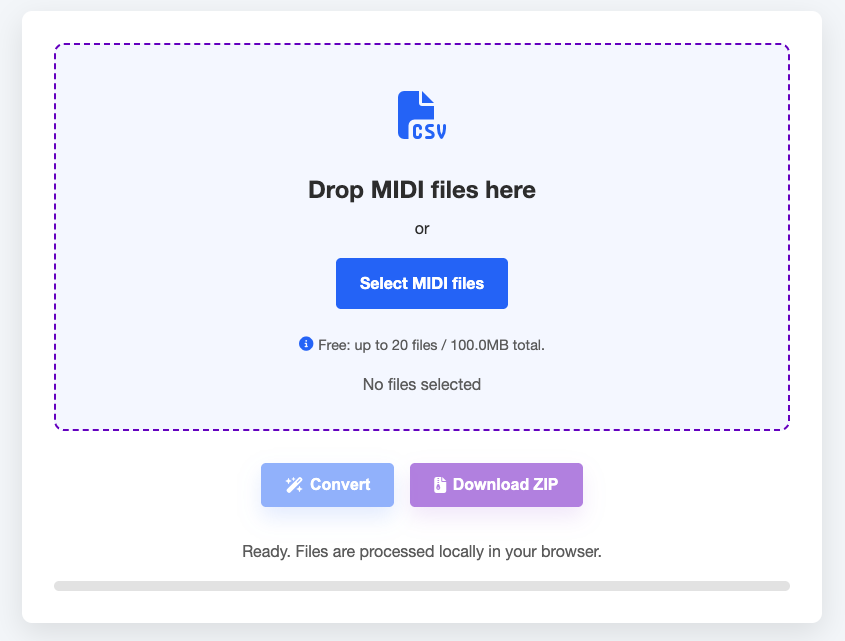
Step 1 — Open the converter
Head over to: /midi-to-csv
(Insert screenshot: the upload area and Convert/Download buttons.)
Step 2 — Upload your MIDI files
Just drag and drop one or more .mid files, or click Select MIDI files.
- Free tier: batch conversion supports up to 20 files / 100MB total
- Pro: built for larger batches (higher limits + faster processing)
Step 3 — Convert and download
Hit Convert, then download your file(s):
- CSV if you uploaded a single file
- ZIP if you uploaded multiple files
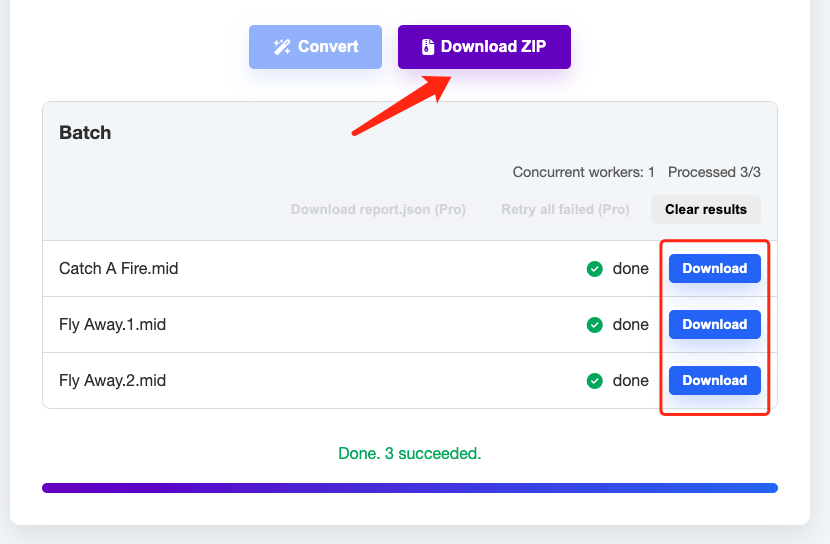
Open the CSV in Excel or Google Sheets and you're good to go.
What the CSV actually looks like
MidiEasy gives you note-level rows—one row per note event.
Here's a simplified example:
track,channel,pitch,note_name,start_seconds,duration_seconds,velocity
1,0,60,C4,12.480,0.250,96
1,0,64,E4,12.480,0.250,92
1,10,36,C2,12.500,0.125,110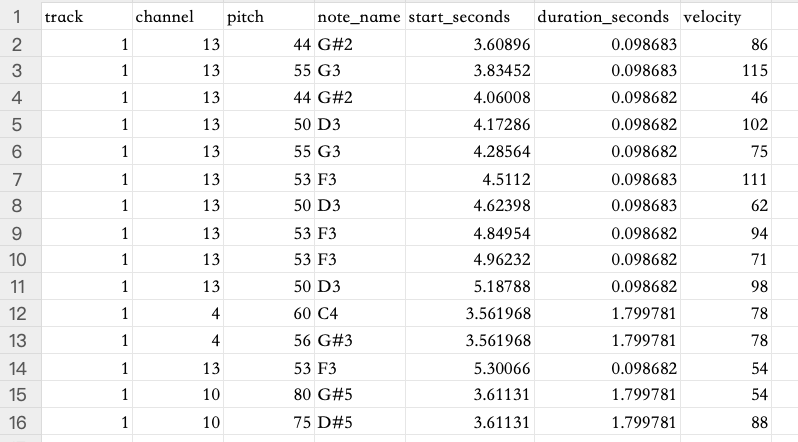
What each column means
- track: The MIDI track index in the file
- channel: The MIDI channel (often used to separate different instruments or parts)
- pitch / note_name: The note pitch (for example, 60 = C4)
- start_seconds: When the note starts (in seconds)
- duration_seconds: How long the note lasts (in seconds)
- velocity: How hard the note is played (ranges from 0–127)
Common issue #1: "Why is the track column always 1?"
This is totally normal in most cases.
A lot of MIDI files are single-track files (format Type 0, or files that have been exported/merged). When that's the case, all the events live inside one track chunk—so the track value stays 1 for every single row.
What to do: Focus on the channel column instead (and sometimes instrument/program info) to tell different parts apart.
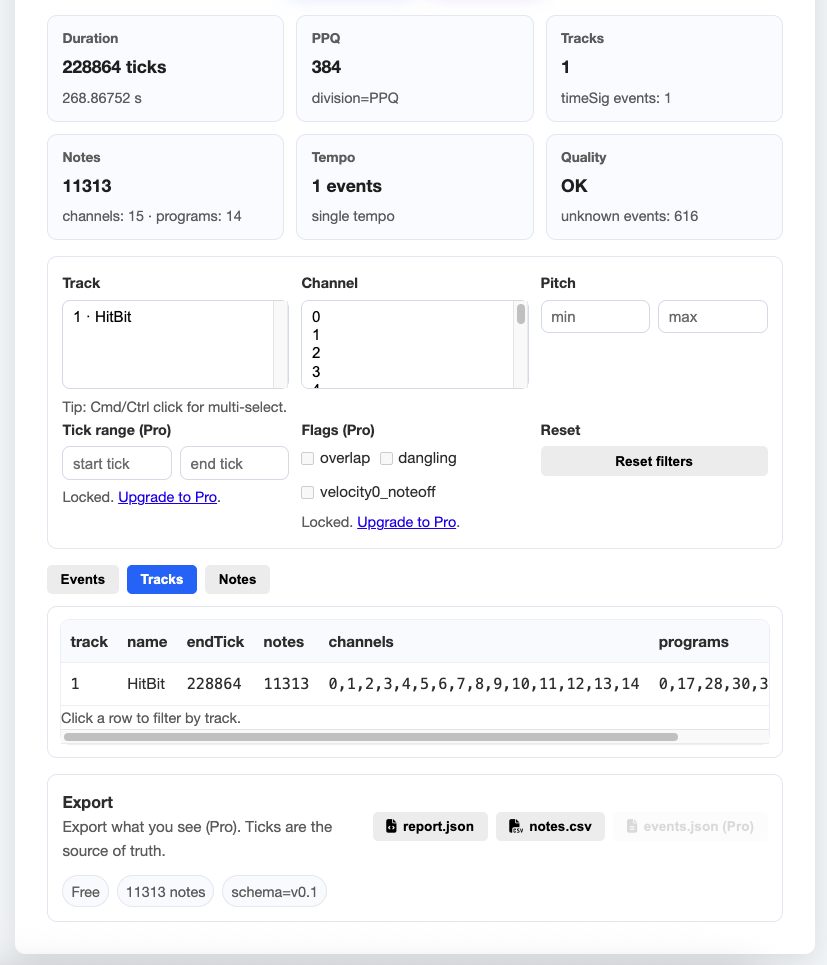
Want to double-check your MIDI file's structure? Use: /midi-inspector
Working with Google Sheets / Excel
Group notes by channel
Create a Pivot Table:
- Rows:
channel - Values:
COUNTof rows (orSUMof duration, depending on what you need)
This instantly shows you which channels have the most activity.
Find the loudest notes
Sort by velocity in descending order, or try:
- Filter:
velocity > 100 - Conditional formatting to highlight high-velocity notes
See which notes appear most often
Build a pivot table with:
- Rows:
note_name(orpitch) - Values: count
That gives you a pitch histogram.
Working with Python (pandas)
Load the CSV
import pandas as pd

df = pd.read_csv("your_file.csv")
df.head()
Count notes per channel
df.groupby("channel").size().sort_values(ascending=False)Calculate total note duration per channel
df.groupby("channel")["duration_seconds"].sum().sort_values(ascending=False)See which pitches are used most
df.groupby("note_name").size().sort_values(ascending=False).head(20)Add an end time column
df["end_seconds"] = df["start_seconds"] + df["duration_seconds"]Common issue #2: "Why are there so many channels?"
That's expected for MIDI files with multiple parts.
Here's what you'll typically see:
- Channel 10 is usually reserved for drums (though not always—it's just a common convention)
- Other channels represent different instruments or parts
If you want to see exactly which programs/instruments are assigned to which channels, check out:
/midi-inspector
Common issue #3: "The timing seems off"
When the timing doesn't match what you expected, it's usually because of:
- Tempo changes throughout the song
- Time signature changes
- An unusual MIDI file structure
Here's what you can try:
- Check the tempo and time signature in
/midi-inspector - Make sure your analysis is working in seconds (this CSV uses
start_secondsandduration_seconds) - Keep in mind that DAWs often display timing differently (ticks vs. seconds), so there might be a visual mismatch
Common issue #4: "Some of my files won't convert"
This can happen with:
- Corrupted or malformed MIDI files
- Files containing unusual or unsupported event types
- Edge-case file encodings
Try these steps:
- Convert files one at a time to figure out which one's causing trouble
- Open the problematic file in
/midi-inspectorto check for quality issues or unknown events
If you're doing a lot of batch conversions, Pro includes retry tools that help you quickly recover from failed conversions.
Is Pro worth it? (Lifetime $9.90)
If you're regularly converting batches of MIDI files, Pro is designed for exactly that:
- Higher batch limits: Free tier caps at 20 files / 100MB; Pro raises the soft limit to around 200 files / 1GB
- Faster processing: 3 workers (Pro) vs 1 (Free)
- Retry tools: Easily retry failed conversions, either in batches or file-by-file
- report.json export: Pro lets you download
report.jsonfiles (and automatically includes them in ZIP downloads)
Related tools
- MIDI to CSV →
/midi-to-csv/ - MIDI Inspector →
/midi-inspector/ - MIDI to JSON →
/ - Pro →
/pro/